

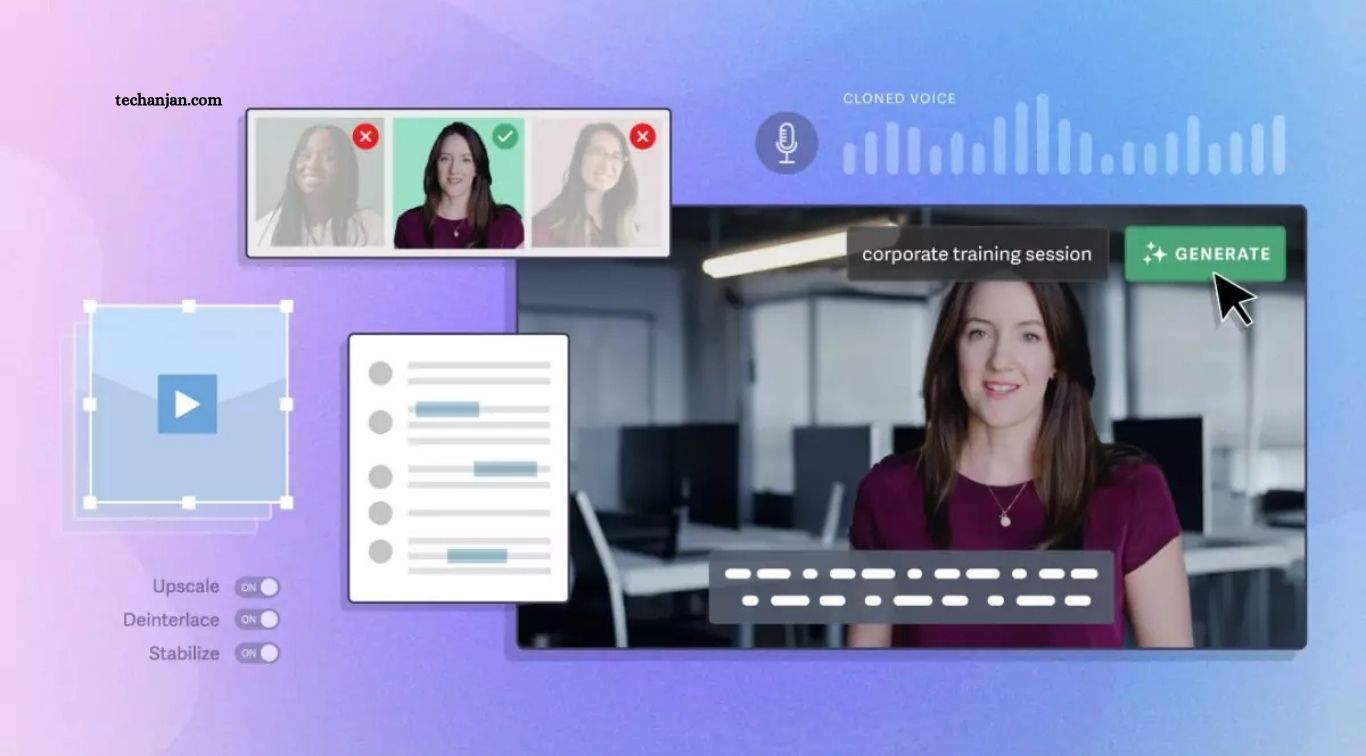
AI video editing tools are changing how creators produce YouTube videos, social media clips, tutorials, advertisements, and professional content. These tools use artificial intelligence to automate repetitive tasks such as generating captions, removing background noise, trimming silence, resizing videos, and creating short clips from longer recordings. As a result, creators can spend less time on routine editing and more time developing engaging content.
Choosing the right AI video editing software depends on your budget, editing experience, and content goals. Some tools are ideal for beginners who want quick results, while others offer advanced controls for professional projects. In this guide, we review the top AI video editing tools, explain their key features, highlight their limitations, and help you choose the option that fits your workflow.
Read More: AI vs Human Intelligence: Key Differences
What Are AI Video Editing Tools?
AI video editing tools are applications that use artificial intelligence to simplify or automate parts of the video production process. Depending on the software, features may include automatic subtitles, transcript-based editing, scene detection, background removal, audio enhancement, object tracking, and AI-assisted visual effects. Some platforms also generate video clips from text prompts or transform existing footage into different formats.
These tools are useful for YouTubers, social media creators, marketers, educators, and businesses that produce video content regularly. However, AI does not eliminate the need for creative decisions or quality checks. Automated edits can miss important context, captions may contain errors, and generated visuals may require refinement. The best results usually come from combining AI assistance with human judgment.
Adobe Premiere Pro — Best for Professional Video Editing
Adobe Premiere Pro is a powerful choice for professional editors who need precise timeline controls alongside AI-assisted features. Its capabilities include automatic transcription and captions, speech enhancement, intelligent media searching, object masking, and generative video extension. These features can help editors organize footage, improve dialogue, and complete complex projects more efficiently without giving up detailed control over the final result.
The main drawback is its learning curve and subscription-based pricing. Beginners may need time to understand its timeline, effects, color tools, and advanced editing options. Premiere Pro is best suited to professional creators, agencies, filmmakers, and businesses that require flexibility for demanding projects. If you mainly create simple social media videos, a lighter editor may offer better value.
DaVinci Resolve — Best Free Professional Editor
DaVinci Resolve is a strong option for creators who want professional editing capabilities without paying for a subscription. Its free version includes a substantial collection of video editing, color correction, visual effects, and audio production tools. AI-assisted features in the broader DaVinci ecosystem can also help with tasks such as masking, tracking, and dialogue-related workflows, although some advanced capabilities require the paid Studio edition.
The software is particularly suitable for filmmakers, experienced YouTubers, and editors who want greater creative control. However, its extensive interface can feel complicated to first-time users, and demanding projects may require a capable computer. DaVinci Resolve is worth considering if you want to learn professional editing skills while keeping initial software costs low.
CapCut — Best for Social Media Videos
CapCut is popular among creators who produce short-form videos for platforms such as TikTok, Instagram Reels, and YouTube Shorts. Its editing workflow includes templates, automatic captions, background removal, visual effects, transitions, and tools that help adapt content to different formats. These features make it easier to produce polished videos without mastering a complicated professional editing interface.
CapCut is a practical starting point for beginners, influencers, and small businesses that need quick results. However, available features, export options, and subscription prices can vary by platform and region. Some advanced tools may require a paid plan, so check the current options before committing. For fast social media production, its accessible workflow makes it one of the most convenient choices.
Descript — Best for Podcasts and Talking-Head Videos
Descript takes a different approach to editing by allowing users to work with a video transcript. After the software transcribes spoken content, you can edit the recording by deleting or rearranging words in the text. Depending on the plan and workflow, AI features can also help remove filler words, improve audio quality, generate captions, and create shorter clips from longer recordings.
This approach is especially useful for podcasters, interviewers, educators, and creators who produce tutorials or commentary videos. It can reduce the time spent cutting long recordings manually. However, Descript is less suitable for projects that depend heavily on elaborate visual effects or highly detailed cinematic editing. Creators should also review transcripts carefully because automatic transcription can misinterpret names, accents, or technical terms.
Runway — Best for AI Visual Effects and Generative Video
Runway focuses on AI-powered visual creation and transformation. Depending on the available model and plan, creators can generate video from prompts or images, modify visual elements, remove unwanted objects, and experiment with creative effects. These capabilities can help produce imaginative scenes, concept footage, and visual assets that would otherwise require more equipment or production time.
Runway is particularly useful for experimental creators, advertising teams, and filmmakers who want to explore AI-generated visuals. However, it should not automatically replace a traditional editor for every project. Generated scenes may contain visual inconsistencies, and complex productions still need careful sequencing, sound design, and finishing. Review generation limits and credit allowances before choosing a paid plan.
OpusClip — Best for Turning Long Videos Into Short Clips
OpusClip is designed to transform long-form recordings into shorter videos suitable for social media. It can analyze uploaded footage, identify potentially engaging moments, generate clips, add captions, and adjust framing for vertical formats. This workflow is helpful for creators who publish podcasts, interviews, webinars, educational videos, or long YouTube recordings and want to reuse their content across multiple platforms.
The main advantage is speed: instead of manually searching an entire recording for highlights, you can review AI-selected clips and refine the most promising ones. However, the software may choose moments that lack enough context or miss the most valuable sections. Always review the generated clips, correct captions, and ensure each segment communicates a complete idea. OpusClip works best as a repurposing tool rather than a complete replacement for a full video editor.
Wondershare Filmora — Best for Beginner-Friendly Editing
Wondershare Filmora combines an approachable editing interface with a collection of creative effects and AI-assisted features. Depending on the version and subscription, users may find tools for automatic captions, background removal, smart cutouts, audio enhancement, and other time-saving editing tasks. Its templates and effects can help beginners create polished videos without learning every detail of a professional editing suite.
Filmora is suitable for YouTube creators, small businesses, students, and people who want more creative options than a basic mobile editor provides. However, some features and assets may require a paid license, and the software does not offer the same depth as more advanced professional platforms in every area. Check export restrictions, licensing terms, and included AI credits before purchasing.
VEED — Best for Browser-Based Video Editing
VEED is a web-based video editor that allows users to create and edit videos through a browser. Its feature set includes automatic subtitles, background removal, resizing, and other AI-assisted editing functions, depending on the selected plan. Because much of the workflow runs online, it can be convenient for marketers, educators, and teams that need to edit content without installing a large desktop application.
The platform is useful for producing social media posts, training materials, presentations, and promotional videos. Its browser-based approach can simplify collaboration, although performance may depend on your internet connection, project size, and browser capabilities. Some export options and advanced features are restricted to paid plans. VEED is a sensible choice when convenience and accessibility matter more than extensive professional timeline control.
Canva — Best for Branded Marketing Videos
Canva is widely used for visual design, and its video editing features make it convenient for creating branded social content. Users can combine video clips with templates, animations, text, graphics, and other design elements. AI-assisted tools can simplify selected editing tasks, while reusable brand assets help businesses maintain a consistent appearance across promotional videos and marketing campaigns.
Canva is particularly useful for beginners, entrepreneurs, and marketing teams that want attractive videos without a complicated production process. It is less suited to projects requiring extensive frame-by-frame editing, complex sound mixing, or advanced cinematic effects. Some premium assets and AI features may also depend on the subscription plan. If your main goal is creating branded promotional content quickly, Canva offers a straightforward workflow.
InVideo AI — Best for Creating Videos From Text Prompts
InVideo AI is designed to help users turn written instructions or scripts into video drafts. Depending on the workflow, it can assemble scenes, suggest visuals, incorporate voiceovers, and produce a starting point for promotional or informational content. This approach can be helpful for marketers, bloggers, educators, and creators who want to develop video concepts without sourcing every visual element manually.
Its main benefit is convenience, particularly when producing explainer videos or content based on written material. However, generated footage and narration may not always match the intended message, and some stock visuals can feel generic. Review the script, confirm that visuals accurately represent the topic, and check the licensing terms for included assets. InVideo AI is most useful when you want to accelerate the first draft rather than publish without reviewing the result.
AI Video Editing Tools Compared
The best software depends on the type of content you create and the amount of control you need. A creator who produces daily social media clips may value automatic captions and templates, while a filmmaker may prioritize advanced color correction, audio tools, and precise timeline editing. Comparing tools by their primary strengths is more useful than choosing one simply because it advertises the most AI features.
| Tool | Best for | Free option |
|---|---|---|
| Adobe Premiere Pro | Professional projects | Trial availability varies |
| DaVinci Resolve | Advanced editing and color | Yes |
| CapCut | Short-form social videos | Yes, with limitations |
| Descript | Podcasts and spoken videos | Yes, with limits |
| Runway | Generative visuals and effects | Yes, with limits |
| OpusClip | Long-to-short video repurposing | Yes, with limits |
| Filmora | Beginner-friendly editing | Limited free option |
| VEED | Browser-based editing | Yes, with limits |
| Canva | Branded marketing videos | Yes, with limits |
| InVideo AI | Text-based video creation | Yes, with limits |
Free plans can restrict resolution, export options, watermarks, storage, or monthly AI usage. Paid prices and included features may change by region and billing period, so confirm the current terms on each provider’s website before making a purchase.
How to Choose the Right AI Video Editing Tool
Start by identifying the videos you produce most often. If you create Reels or Shorts, prioritize automatic captions, vertical resizing, and quick editing. For podcasts and interviews, transcript-based editing and audio cleanup may save more time. If you produce films or detailed YouTube videos, choose software with a capable timeline, reliable media management, and precise control over sound, color, and transitions.
Next, consider your budget, computer specifications, experience, and required export quality. Test a free version or trial when available and use the same sample footage to compare editing speed, output quality, and ease of use. Check whether important features require additional credits or a paid subscription. The best tool is the one that improves your workflow without adding unnecessary complexity or ongoing costs.
Tips for Getting Better Results With AI Video Editors
Begin with clear footage, understandable audio, and a simple editing plan. AI tools can automate repetitive work, but good source material still matters. Use automatic captions as a starting point, check spelling and punctuation, remove awkward cuts, and confirm that transitions support the message. When using generative features, write specific prompts and review the output for visual errors or inconsistencies before adding it to your final project.
Protect your workflow by keeping backups of original recordings and reviewing licensing terms for music, stock footage, generated assets, and voiceovers. If a video contains private or confidential material, check how the provider handles uploaded files and user data before sharing it. Finally, watch the completed video from beginning to end on the devices your audience is likely to use. Human review remains essential for accuracy, pacing, accessibility, and overall quality.
Frequently Asked Questions
What is the best AI video editing tool overall?
There is no single winner for every workflow. Descript suits spoken videos, while Premiere Pro and DaVinci Resolve suit detailed editing.
Which AI video editor is best for beginners?
CapCut, Filmora, and Canva are approachable options for beginners who want templates and straightforward editing tools.
Are there free AI video editing tools?
Yes. DaVinci Resolve, CapCut, Descript, Runway, and several browser-based tools offer free versions with different limitations.
Can AI automatically edit YouTube videos?
Yes. AI can help trim footage, generate captions, clean audio, and identify highlights, but manual review is still important.
Which tool is best for turning long videos into Shorts?
OpusClip is designed for repurposing long recordings into short clips, while CapCut can help refine them for social platforms.
Do AI video editing tools replace professional editors?
Not entirely. They automate repetitive tasks, but complex storytelling, creative decisions, and detailed finishing still benefit from human expertise.
Conclusion
The top AI video editing tools offer different advantages, from fast social media production to professional post-production and AI-generated visual effects. CapCut is convenient for short-form content, Descript simplifies spoken-video editing, Runway supports creative visual experiments, and DaVinci Resolve provides a powerful free editing environment. Adobe Premiere Pro remains a strong choice for complex projects that require detailed control. Before choosing a platform, consider your content type, budget, technical requirements, and preferred workflow.
